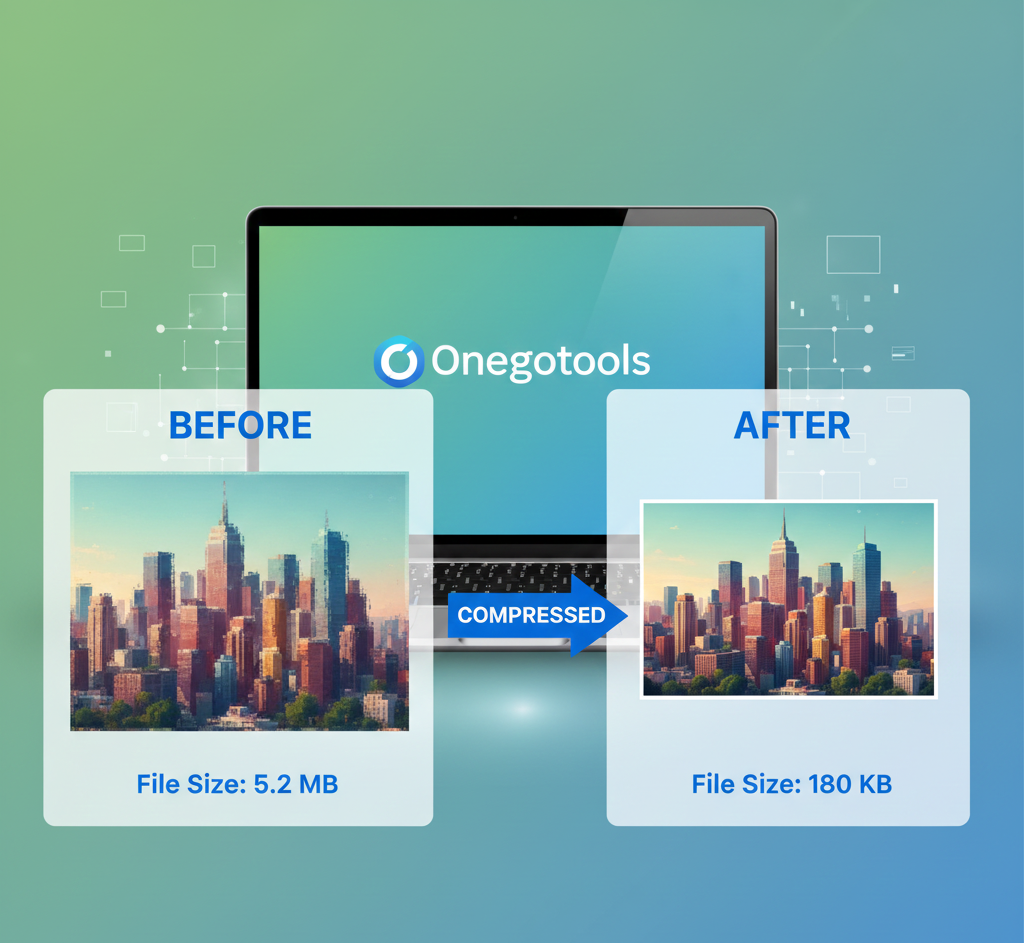
Image Compression Without Losing Quality: Best Free Tools You Must Try
In today's digital world, images are everywhere. From websites and social media to presentations and documents, images play a crucial role in conveying information and capturing attention. However, high-resolution images can be large, leading to slow loading times, increased bandwidth consumption, and storage issues. That's where image compression comes in. Compressing images reduces their file size, making them easier to manage, share, and use on the web – all while preserving visual quality. Let's explore the importance of image compression and highlight the best free tools you can use to optimize your images without sacrificing quality.
Table of Contents
- Why Image Compression Matters
- Lossy vs. Lossless Compression: Understanding the Difference
- Top Free Image Compression Tools
- TinyPNG
- JPEG Optimizer
- ImageOptim
- IloveIMG
- Onegotools Image Compressor
- Image Optimization Tips
- Frequently Asked Questions (FAQ)
- Conclusion
Why Image Compression Matters
Image compression is essential for several reasons:
- Faster Loading Times: Compressed images load faster on websites, improving user experience and reducing bounce rates.
- Reduced Bandwidth Consumption: Smaller image files require less bandwidth, saving you money on hosting and data costs.
- Improved Website Performance: Optimizing images can significantly enhance your website's overall performance, leading to better search engine rankings.
- Efficient Storage: Compressed images take up less storage space, allowing you to store more images on your devices and servers.
- Easier Sharing: Smaller image files are easier to share via email, social media, and other platforms.
Lossy vs. Lossless Compression: Understanding the Difference
Image compression techniques fall into two main categories: lossy and lossless. Understanding the difference between them is crucial for choosing the right compression method for your needs.
Lossy Compression
Lossy compression reduces file size by discarding some image data. This results in smaller files but can lead to a loss of quality, especially with high compression ratios. Common lossy formats include JPEG.
Pros:
- Significantly smaller file sizes
- Suitable for photographs and images where minor quality loss is acceptable
Cons:
- Loss of image quality
- Quality degrades further with each compression
Lossless Compression
Lossless compression reduces file size without discarding any image data. This means that the image quality remains intact after compression. Common lossless formats include PNG and GIF.
Pros:
- No loss of image quality
- Ideal for images with text, graphics, and sharp lines
Cons:
- File sizes are generally larger than with lossy compression
Top Free Image Compression Tools
Here are some of the best free online image compression tools that you can use to reduce image size without sacrificing quality:
TinyPNG
TinyPNG is a popular online tool that uses smart lossy compression techniques to reduce the file size of PNG images. It selectively decreases the number of colors in the image, resulting in smaller files with minimal loss of quality. TinyPNG also supports JPEG compression.
Key Features:
- Supports PNG and JPEG compression
- Easy-to-use interface
- Batch compression (compress multiple images at once)
- Integration with WordPress and other platforms
How to Use:
- Go to the TinyPNG website.
- Drag and drop your PNG or JPEG images onto the page.
- Wait for the tool to compress your images.
- Download the compressed images.
JPEG Optimizer
JPEG Optimizer is a free online tool specifically designed for compressing JPEG images. It allows you to adjust the compression level to balance file size and image quality. This tool is perfect for optimizing JPEG images for web use.
Key Features:
- Specifically for JPEG compression
- Adjustable compression level
- Simple and straightforward interface
How to Use:
- Go to the JPEG Optimizer website.
- Upload your JPEG image.
- Adjust the compression level.
- Download the optimized image.
ImageOptim
ImageOptim is a free, open-source tool for Mac that optimizes images by removing unnecessary metadata and applying various compression techniques. It supports a wide range of image formats, including PNG, JPEG, and GIF.
Key Features:
- Supports multiple image formats
- Removes unnecessary metadata
- Uses multiple optimization tools for maximum compression
- Available for Mac
How to Use:
- Download and install ImageOptim on your Mac.
- Drag and drop your images onto the ImageOptim window.
- ImageOptim will automatically optimize your images.
- The optimized images will replace the original files.
IloveIMG
IloveIMG is a comprehensive online image editing tool that offers a variety of features, including image compression. It supports multiple image formats and allows you to compress images in bulk.
Key Features:
- Supports multiple image formats
- Batch compression
- Other image editing tools (resize, crop, convert)
- Easy-to-use interface
How to Use:
- Go to the IloveIMG website.
- Select the "Compress IMAGE" tool.
- Upload your images.
- Click the "Compress" button.
- Download the compressed images.
Onegotools Image Compressor
Onegotools Image Compressor is a powerful, user-friendly online tool designed to significantly reduce the size of your image files without compromising visual quality. Whether you're optimizing images for your website, social media, or sharing them with colleagues, Onegotools provides a seamless experience with impressive results. It supports various formats like JPG, PNG, and more!
Key Features:
- User-Friendly Interface: Simple and intuitive design makes it easy for anyone to compress images in just a few clicks.
- High-Quality Compression: Advanced algorithms ensure minimal quality loss, even with significant file size reduction.
- Multiple Format Support: Works seamlessly with JPG, PNG, and other popular image formats.
- Fast Processing: Quickly compress images so you can save time and stay productive.
- Free to Use: Enjoy all the features of Onegotools Image Compressor without any cost.
How to use Onegotools Image Compressor:
- Navigate to the Onegotools Image Compressor page on the Onegotools website.
- Upload your image by dragging and dropping it into the designated area, or by selecting the file from your device.
- Click the “Compress” button.
- Download the compressed image once the process is complete.
Image Optimization Tips
Here are some additional tips for optimizing your images:
- Choose the Right Format: Use JPEG for photographs and PNG for graphics, logos, and images with text.
- Resize Images: Resize images to the exact dimensions needed for your website or application.
- Use Descriptive File Names: Use descriptive file names that include relevant keywords.
- Add Alt Text: Add alt text to your images for accessibility and SEO purposes.
- Optimize for Mobile: Ensure your images are optimized for mobile devices.
Frequently Asked Questions (FAQ)
Q: What is image compression?
A: Image compression is the process of reducing the file size of an image without significantly affecting its visual quality.
Q: Why should I compress images?
A: Compressing images improves website loading times, reduces bandwidth consumption, and saves storage space.
Q: What is the difference between lossy and lossless compression?
A: Lossy compression reduces file size by discarding some image data, while lossless compression reduces file size without discarding any data.
Q: Which image format should I use?
A: Use JPEG for photographs and PNG for graphics, logos, and images with text.
Q: How much can I compress an image without losing quality?
A: The amount of compression you can apply without noticeable quality loss depends on the image and the compression algorithm used. Experiment with different compression levels to find the right balance.
Q: Is Onegotools image compressor free to use?
A: Yes! Onegotools Image Compressor is completely free to use for everyone.
Conclusion
Image compression is a crucial aspect of web development and digital content creation. By using the right tools and techniques, you can significantly reduce image file sizes without sacrificing quality, leading to faster loading times, improved website performance, and a better user experience. Explore the free tools mentioned in this blog post, including the Onegotools Image Compressor, and start optimizing your images today!



Comments (0)
Leave a Comment