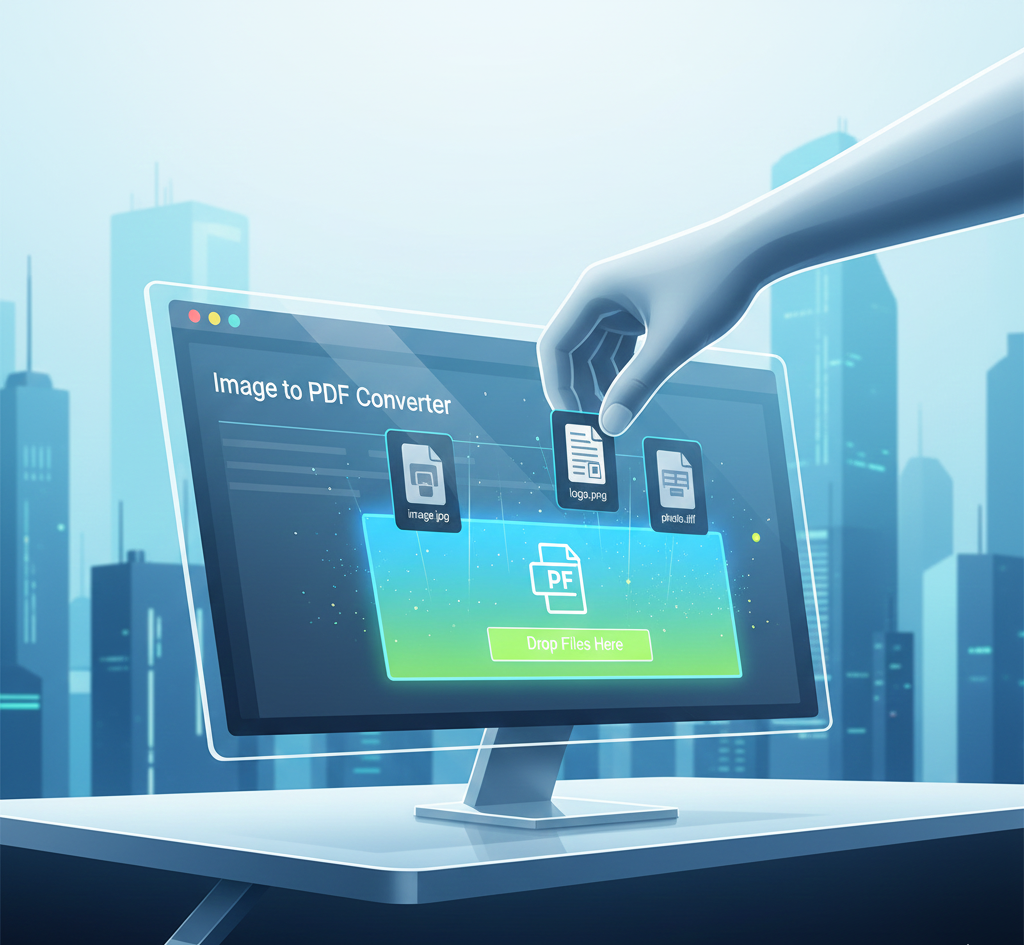
Convert Images to PDF Instantly: Step-by-Step Guide for 2025
In today's digital world, the ability to seamlessly convert images into PDF documents is more crucial than ever. Whether you're archiving important documents, sharing visual content, or simply need a universally compatible format, PDFs offer a reliable solution. This comprehensive guide for 2025 will walk you through the process step-by-step, ensuring you can convert images to PDF instantly and efficiently. With advancements in technology, converting images to PDF has become remarkably easy, and this guide will cover the best methods and tools available, including using Onegotools for all your PDF conversion needs.
Table of Contents
- Why Convert Images to PDF?
- Step-by-Step Guide to Converting Images to PDF
- Best Tools for Image to PDF Conversion
- Optimizing Print Settings for PDFs
- Frequently Asked Questions
- Conclusion
Why Convert Images to PDF?
Converting images to PDF offers numerous benefits, making it an essential skill for anyone working with digital documents. Here are some key reasons why you should convert your images to PDF:
- Universal Compatibility: PDFs are universally compatible across different operating systems, devices, and software. This ensures that your images will be viewed correctly regardless of the recipient's setup.
- Preservation of Formatting: PDFs preserve the formatting of your images, ensuring that they appear exactly as intended, without distortion or loss of quality.
- Security: PDFs offer security features such as password protection and encryption, allowing you to safeguard sensitive information.
- File Size Reduction: Converting images to PDF can often reduce the file size, making them easier to share via email or online platforms.
- Archiving: PDFs are ideal for archiving important documents and images, ensuring their longevity and accessibility.
- Combine Multiple Images: You can easily combine multiple images into a single PDF document, streamlining your workflow and organization.
Step-by-Step Guide to Converting Images to PDF
Converting images to PDF is a straightforward process. Here’s a detailed guide to help you through each step:
Method 1: Using Onegotools Online Converter
Onegotools offers a free and easy-to-use online image to PDF converter. Here's how to use it:
- Go to the Onegotools Website: Open your web browser and navigate to the Onegotools website.
- Select the Image to PDF Tool: Find and select the "Image to PDF" converter from the list of available tools.
- Upload Your Image: Click the "Upload" button and select the image file (JPG, PNG, etc.) from your computer.
- Adjust Settings (Optional): Some converters offer options to adjust image quality, page size, and orientation. Configure these settings to your preference.
- Convert to PDF: Click the "Convert" button to start the conversion process.
- Download Your PDF: Once the conversion is complete, click the "Download" button to save the PDF to your computer.
[Screenshot Placeholder: Onegotools Image to PDF Converter Interface]
Method 2: Using Microsoft Word
Microsoft Word can also be used to convert images to PDF:
- Open Microsoft Word: Launch Microsoft Word on your computer.
- Insert the Image: Go to the "Insert" tab and click "Pictures" to insert the image into the document.
- Adjust Image Size and Position: Resize and position the image as needed within the document.
- Save as PDF: Go to "File" > "Save As" and select "PDF" as the file format.
- Adjust Save Settings (Optional): Click "Options" to adjust settings like image compression and security.
- Save the PDF: Click "Save" to save the image as a PDF.
[Screenshot Placeholder: Microsoft Word Save As PDF Option]
Method 3: Using macOS Preview
macOS Preview is a built-in tool that can convert images to PDF:
- Open the Image in Preview: Double-click the image file to open it in Preview.
- Export as PDF: Go to "File" > "Export as PDF."
- Save the PDF: Choose a location and click "Save" to save the image as a PDF.
[Screenshot Placeholder: macOS Preview Export as PDF Option]
Best Tools for Image to PDF Conversion
Choosing the right tool can significantly simplify the image to PDF conversion process. Here are some of the best tools available in 2025:
- Onegotools Online Converter: A free, user-friendly online tool that offers quick and easy image to PDF conversion. No software installation is required.
- Adobe Acrobat Pro: A professional-grade PDF editor with advanced features, including image to PDF conversion, OCR, and document editing.
- Smallpdf: Another popular online tool that offers a range of PDF conversion and editing services, including image to PDF conversion.
- iLovePDF: A comprehensive online PDF toolkit with tools for converting, merging, splitting, and editing PDFs.
- PDFelement: A desktop PDF editor with features for creating, editing, converting, and signing PDFs.
Optimizing Print Settings for PDFs
When printing PDFs converted from images, optimizing print settings is essential to ensure high-quality output. Here are some tips to optimize your print settings:
- Choose High Resolution: Select a high resolution (300 DPI or higher) to ensure sharp and detailed prints.
- Select the Correct Paper Size: Ensure that the paper size in the print settings matches the size of the PDF document.
- Adjust Margins: Adjust the margins to ensure that the image is printed within the printable area of the paper.
- Select the Correct Print Mode: Choose the appropriate print mode (e.g., grayscale or color) based on the content of the image.
- Use High-Quality Paper: Using high-quality paper can improve the overall print quality and durability.
- Check Printer Settings: Before printing, check your printer settings to ensure that the correct settings are selected.
[Screenshot Placeholder: Example Print Settings Dialog]
Frequently Asked Questions
- Q: Is it safe to use online image to PDF converters?
- A: Yes, most reputable online converters are safe to use. However, it’s essential to choose a trusted provider like Onegotools and avoid uploading sensitive information.
- Q: Can I convert multiple images to a single PDF?
- A: Yes, many online and offline tools allow you to convert multiple images to a single PDF. Onegotools, for example, offers a merge PDF tool that can help with this.
- Q: What image formats can be converted to PDF?
- A: Most tools support common image formats such as JPG, PNG, TIFF, GIF, and BMP.
- Q: How can I reduce the file size of a PDF created from images?
- A: You can reduce the file size by compressing the images during the conversion process or using a PDF compression tool after the conversion. Onegotools also provides tools for compressing PDFs.
- Q: Can I convert a PDF back to an image?
- A: Yes, you can use a PDF to image converter to extract the images from a PDF document.
- Q: Do I need to pay for a good image to PDF converter?
- A: No, there are many free and reliable image to PDF converters available, such as Onegotools. However, paid tools often offer additional features and support.
Conclusion
Converting images to PDF is a fundamental skill in today's digital landscape. By following this step-by-step guide, you can easily convert images to PDF using a variety of tools and methods. Whether you choose to use an online converter like Onegotools, Microsoft Word, or macOS Preview, the process is now simpler and more efficient than ever. Remember to optimize your print settings for the best possible output and always prioritize security when handling sensitive information. With the right tools and techniques, you can effortlessly manage your digital documents and ensure they are accessible, secure, and universally compatible.



Comments (0)
Leave a Comment