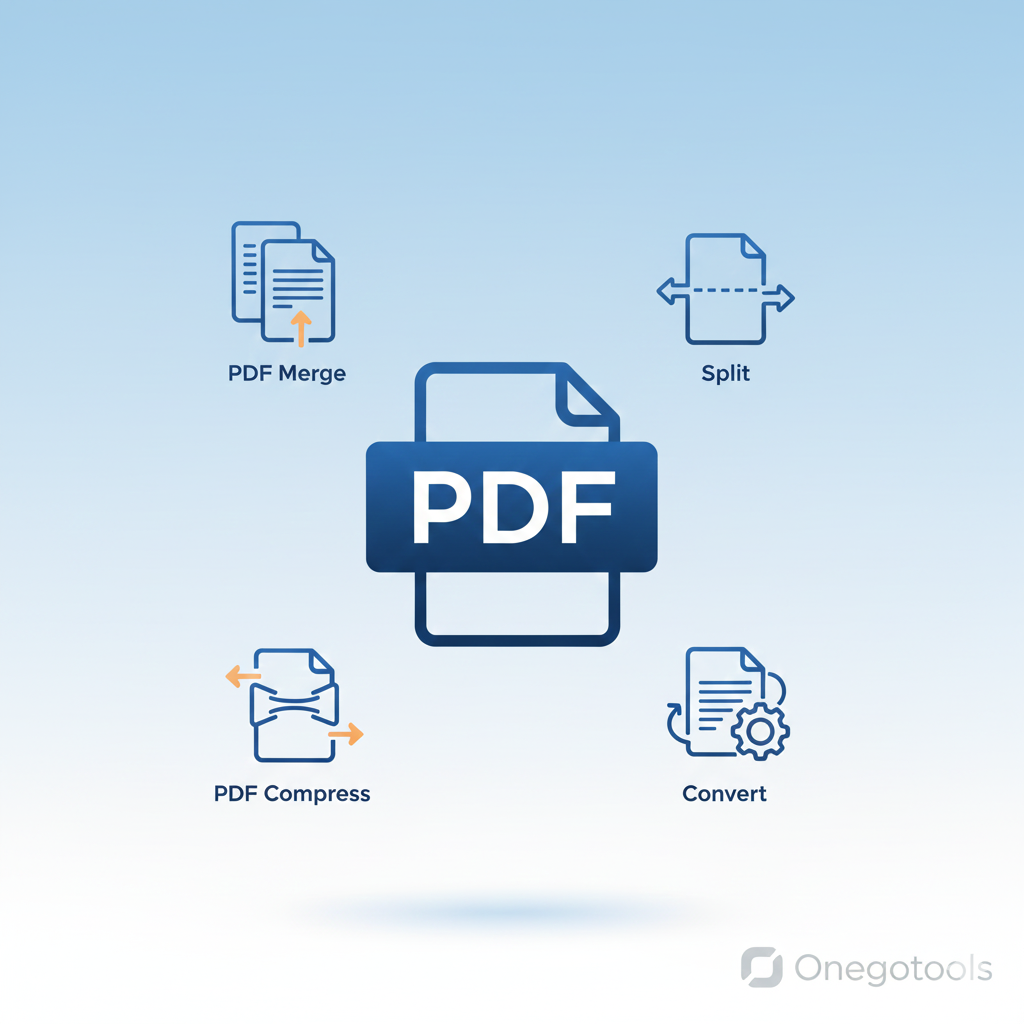
Best Free PDF Tools Online: Merge, Split, Compress, and Convert in Seconds
In today's digital age, PDFs (Portable Document Format) are ubiquitous. From important documents to e-books, PDFs are the go-to format for sharing and preserving information. However, working with PDFs often requires more than just viewing them. You might need to merge multiple files, split a large document, compress it for easier sharing, or convert it to a different format altogether. That's where free PDF tools online come in handy. These tools empower you to manipulate PDFs quickly and efficiently, all without the need for expensive software. One such platform offering a suite of free PDF tools is Onegotools.
Table of Contents
- Introduction
- PDF Merge
- PDF Split
- PDF Compress
- PDF Convert
- PDF Unlock
- PDF Organize
- Comparison Table
- FAQs
- Conclusion
Introduction
Managing PDF documents can be a hassle without the right tools. Whether you're a student, professional, or simply someone who deals with digital documents regularly, having access to reliable and free PDF tools is essential. Onegotools provides a comprehensive suite of online PDF tools designed to simplify your document management tasks. No software installation is needed; all tools are accessible directly from your web browser.
PDF Merge
Combining multiple PDF files into a single document is a common requirement. With a PDF merge tool, you can easily consolidate your files into one organized document.
Step-by-Step Guide to Merge PDFs:
- Go to the Onegotools website and select the 'Merge PDF' tool.
- Upload the PDF files you want to merge. You can drag and drop the files or select them from your computer.
- Arrange the files in the desired order.
- Click the 'Merge' button.
- Download the merged PDF file.
Use Cases for Merging PDFs:
- Combining multiple reports into a single document for easier sharing.
- Creating a single portfolio from individual project files.
- Compiling chapters of a book into one PDF file.
PDF Split
Sometimes, you need to extract specific pages from a large PDF document. A PDF split tool allows you to divide a PDF into multiple smaller files.
Step-by-Step Guide to Split PDFs:
- Go to the Onegotools website and select the 'Split PDF' tool.
- Upload the PDF file you want to split.
- Specify the pages or page ranges you want to extract.
- Click the 'Split' button.
- Download the individual PDF files.
Use Cases for Splitting PDFs:
- Extracting specific chapters from a book.
- Separating individual invoices from a batch.
- Sharing only relevant pages of a lengthy report.
PDF Compress
Large PDF files can be cumbersome to share via email or upload to websites. A PDF compress tool reduces the file size without compromising the quality of the content.
Step-by-Step Guide to Compress PDFs:
- Go to the Onegotools website and select the 'Compress PDF' tool.
- Upload the PDF file you want to compress.
- Choose the compression level (High, Medium, Low).
- Click the 'Compress' button.
- Download the compressed PDF file.
Use Cases for Compressing PDFs:
- Reducing the size of documents for email attachments.
- Optimizing PDFs for web uploads.
- Saving storage space on your computer or device.
PDF Convert
Converting PDFs to other formats, such as Word, Excel, or JPG, is often necessary for editing or repurposing the content. A PDF converter tool facilitates this process.
Step-by-Step Guide to Convert PDFs:
- Go to the Onegotools website and select the 'PDF Converter' tool.
- Upload the PDF file you want to convert.
- Select the desired output format (e.g., Word, Excel, JPG).
- Click the 'Convert' button.
- Download the converted file.
Use Cases for Converting PDFs:
- Editing the text of a PDF in Microsoft Word.
- Extracting data from a PDF into an Excel spreadsheet.
- Converting PDF pages to images for presentations or websites.
PDF Unlock
If you have a PDF file that is password-protected and you've lost or forgotten the password, a PDF unlock tool can help you remove the password and regain access to the document. Note: This should only be used on files you own or have permission to unlock.
Step-by-Step Guide to Unlock PDFs:
- Go to the Onegotools website and select the 'Unlock PDF' tool.
- Upload the PDF file you want to unlock.
- Click the 'Unlock' button.
- Download the unlocked PDF file.
Disclaimer: Only unlock PDFs that you own or have explicit permission to unlock.
Use Cases for Unlocking PDFs:
- Accessing a PDF when you've forgotten the password.
- Removing security restrictions to allow printing or editing.
PDF Organize
Reordering pages, deleting pages, or inserting new pages into a PDF document can be easily done with a PDF organize tool.
Step-by-Step Guide to Organize PDFs:
- Go to the Onegotools website and select the 'Organize PDF' tool.
- Upload the PDF file you want to organize.
- Rearrange pages by dragging and dropping them.
- Delete unwanted pages.
- Insert new pages from other PDF files.
- Click the 'Save' button.
- Download the organized PDF file.
Use Cases for Organizing PDFs:
- Reordering pages in a presentation.
- Removing blank pages from a scanned document.
- Adding cover pages or appendices to a report.
Comparison Table: Onegotools vs. Other Online PDF Tools
| Feature | Onegotools | Other Online PDF Tools |
|---|---|---|
| Free Access | Yes | Varies (often limited features) |
| No Registration Required | Yes | Often Required |
| Merge PDF | Yes | Yes |
| Split PDF | Yes | Yes |
| Compress PDF | Yes | Yes |
| Convert PDF | Yes | Yes |
| Unlock PDF | Yes | Yes |
| Organize PDF | Yes | Limited/Paid Feature |
| Security | Secure SSL encryption | Varies |
FAQs
-
Are online PDF tools safe to use?
Yes, reputable online PDF tools like Onegotools use secure SSL encryption to protect your data during upload and download. However, always ensure the website has a valid SSL certificate before uploading sensitive documents.
-
Do I need to install any software to use Onegotools?
No, Onegotools is a web-based platform, meaning you don't need to install any software. Simply access the website through your browser and start using the tools.
-
Is Onegotools really free?
Yes, Onegotools offers a range of free PDF tools. Some advanced features may require a subscription, but the basic functionalities are available for free.
-
What file formats can I convert PDFs to?
Onegotools supports various output formats, including Word (DOC, DOCX), Excel (XLS, XLSX), JPG, PNG, and more.
-
How do I compress a PDF file?
Simply upload your PDF to the PDF compress tool on Onegotools, select the desired compression level, and click 'Compress'. The tool will reduce the file size without significantly affecting the quality.
-
Can I merge multiple PDF files into one?
Yes, use the PDF merge tool to combine several PDFs into a single, cohesive document. You can arrange the files in the order you prefer before merging.
Conclusion
Free PDF tools online provide a convenient and cost-effective way to manage your PDF documents. Whether you need to merge PDF files, split PDF documents, compress PDF size, convert PDF to other formats, unlock PDF restrictions, or organize PDF pages, Onegotools offers a comprehensive suite of tools to meet your needs. Its user-friendly interface and robust features make it an excellent choice for anyone looking to simplify their PDF management tasks. Start using Onegotools today and experience the convenience of managing your PDFs with ease! Try the best free PDF tools online now!



Comments (0)
Leave a Comment